Separate scale, orientation and mapping problems
Low resolution is not the only reason a material looks wrong. Oversized bricks suggest a coverage problem, vertical grain where horizontal was intended suggests orientation, and stretched detail on selected faces suggests mapping. Treat these as separate checks rather than adjusting everything until the surface looks plausible.
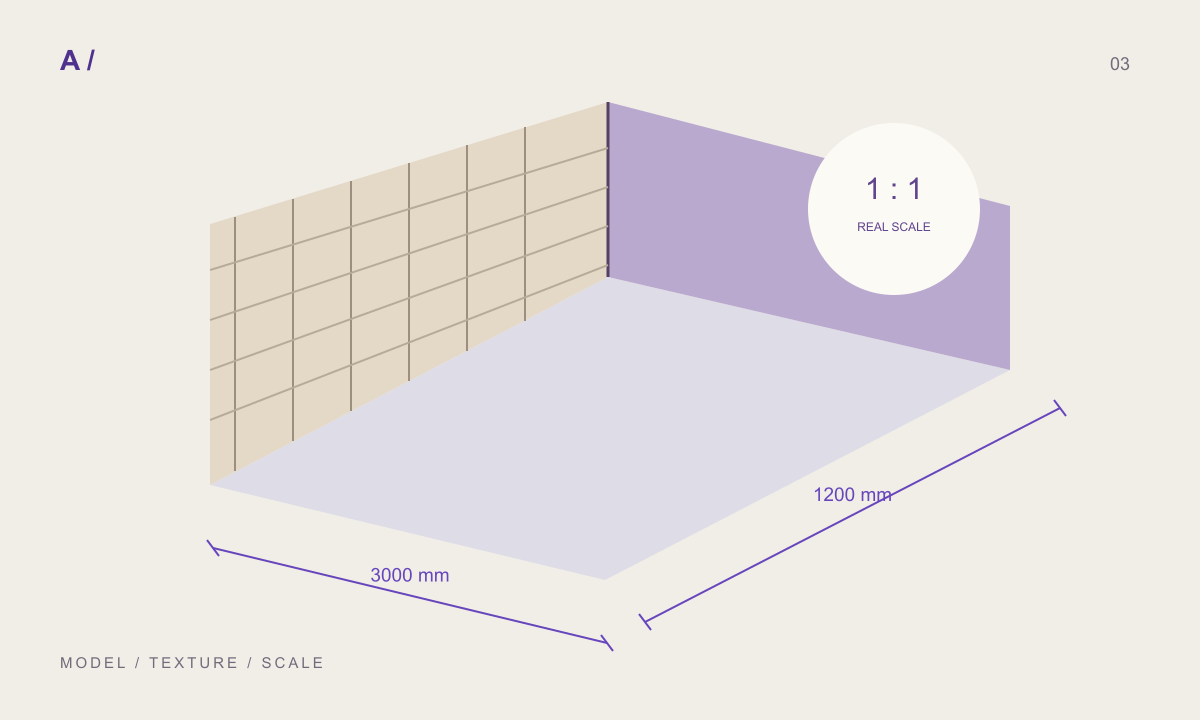
Start with one flat face and a reference dimension. Calculate how many units should fit across it. This small test reveals the source of the problem before you replace the material across an entire facade. Keep the test visible while you work so each adjustment has a measurable outcome.
Distinguish one unit from the complete image
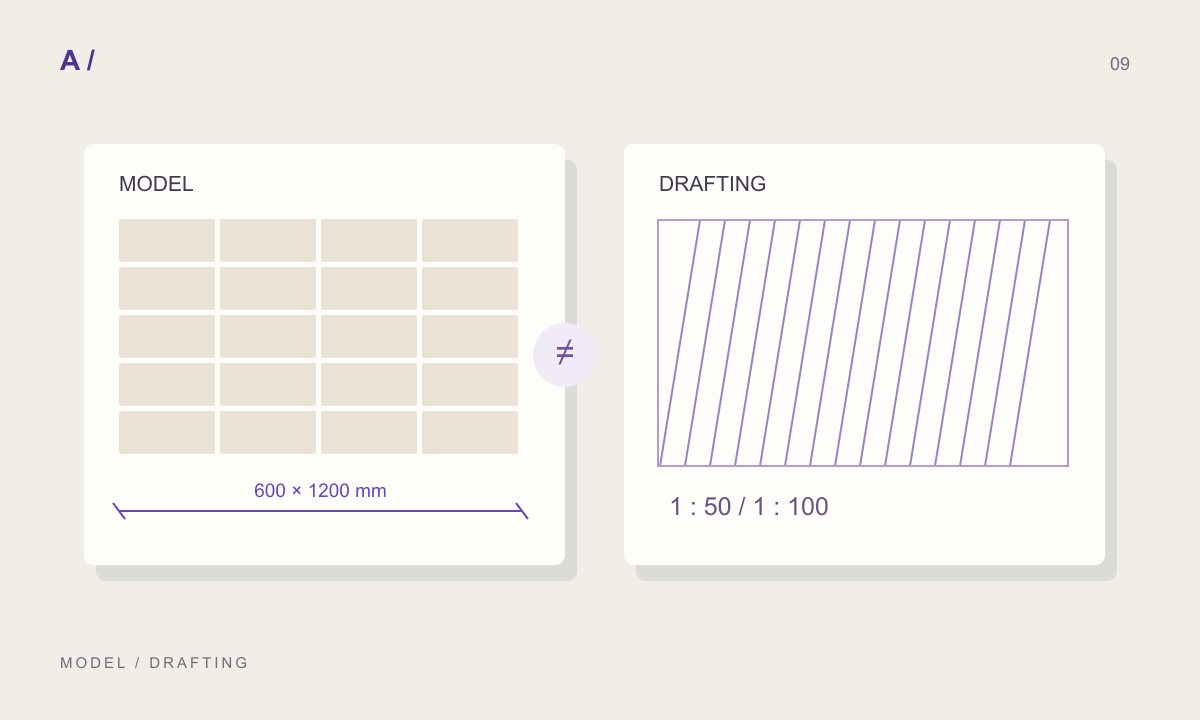
A downloaded texture may show a single stone or a repeat containing several stones and joints. The material size should describe the coverage of the complete image. Assigning a four-unit image the width of one unit makes every visible unit four times smaller.
For example, a repeat containing four 600 mm units may be wider than 2400 mm once its joint convention is included. If the package states 2416 mm, do not automatically use 600 mm as the texture width. When the image and metadata seem inconsistent, examine the module definition and joint treatment. An arbitrary correction factor can make the view plausible while leaving the interpretation wrong.
Position the texture after establishing its size
SketchUp’s official guide describes Texture > Position in the textured face’s context menu. Its coloured pins have distinct translation, rotation, scale and distortion functions. Use the appropriate operation so a positioning change does not introduce an unintended deformation.
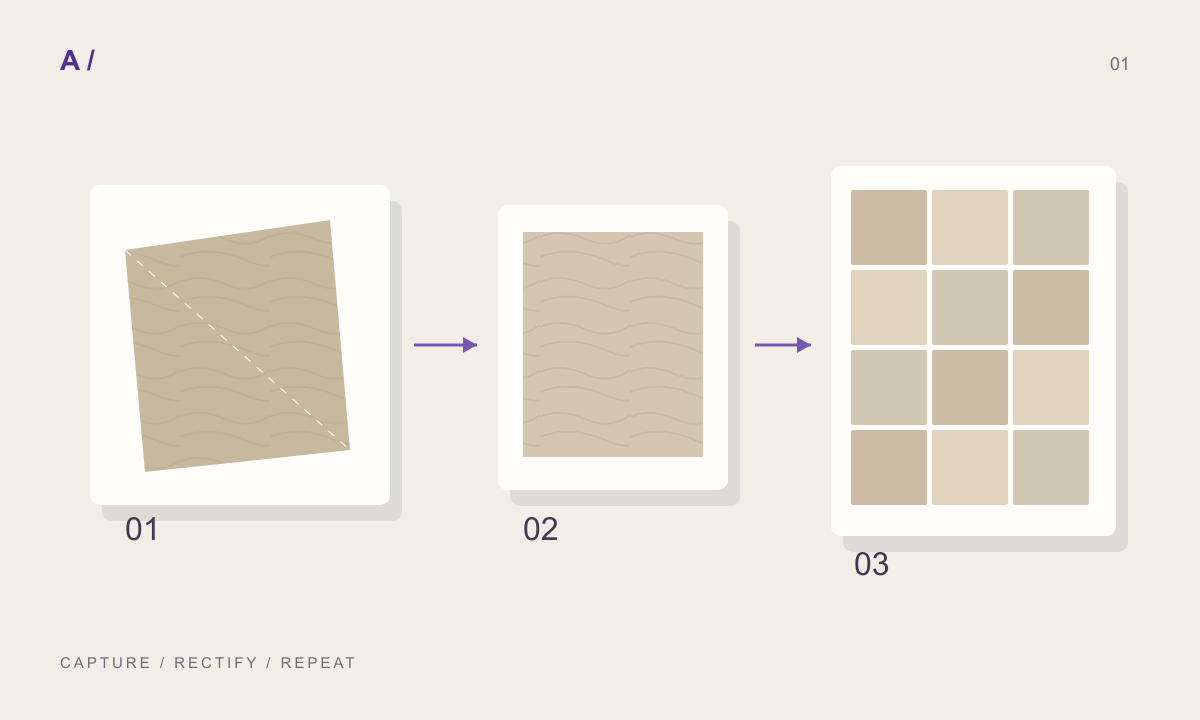
After setting physical coverage, align a corner or joint to a known reference. Establish one correct face and then inspect adjacent faces. Fitting an image to a particular face and repeating a material at its intended dimensions are different goals. Decide which one applies before moving pins, especially when a source photograph already contains a complete assembly.
Record grain direction as a design decision
A ninety-degree rotation can change the composition of timber, veined stone or brushed metal. Assess direction across the full wall or floor, rather than only on the material thumbnail. If neighbouring faces intentionally use different orientations, leave a note so later revisions do not “correct” the design.
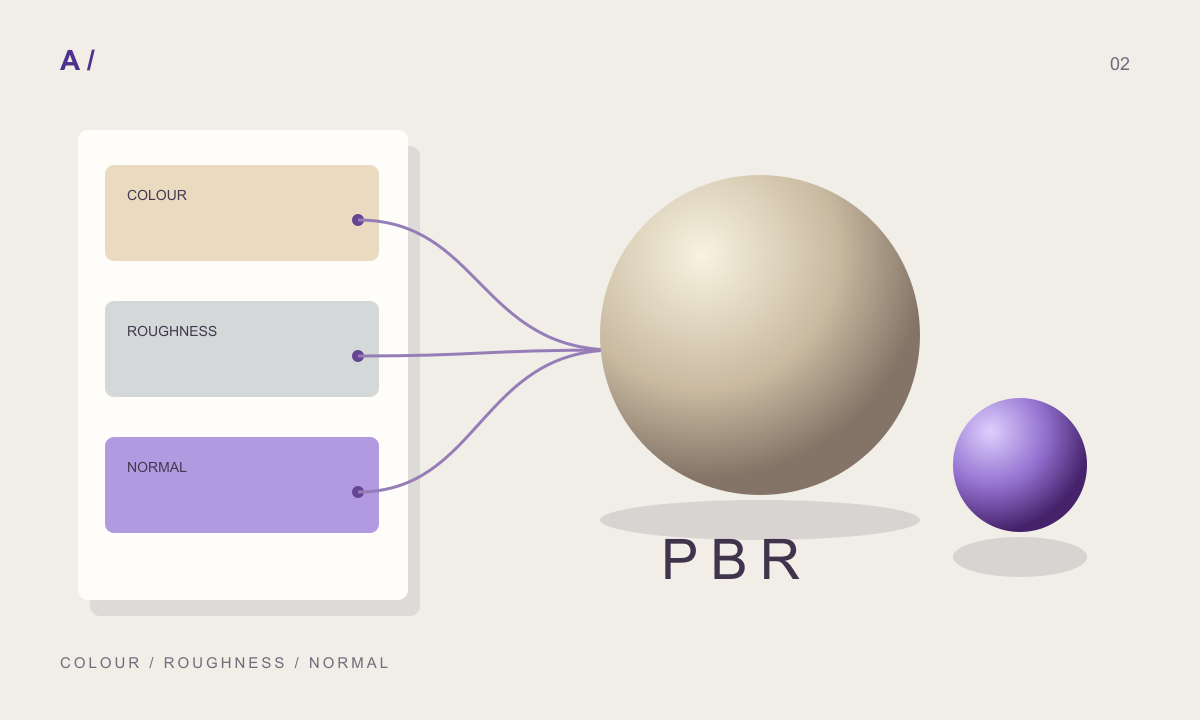
A material looking right in the modelling view does not prove that every extra channel will be interpreted the same way by a rendering extension. Review mapping and channel connections there as well. MATERIALHAUS supplies a downloadable package; the destination setup and checks remain part of the workflow.
Use a three-metre wall as a worked test
Imagine a 3000 mm-wide plane with an intended repeat interval of 500 mm. You should see six repeats. Five repeats may indicate that the interval has become approximately 600 mm. This is a diagnostic clue about mapping, not evidence about the manufactured product.
Inspect more than the outer edges. Check an internal repeat boundary, a close joint and the pattern of distinctive marks across the full surface. If scale is correct but the wall still looks artificial, the source may contain an obvious repeating feature. Choose a different source or crop rather than altering the physical scale to hide it.
Deliver both the appearance and the interpretation
Use a clear project name, such as facade_stone_600x1200_v02, and record the complete repeat dimensions separately. If the filename describes one slab, make that distinction explicit. Keep the source image, adjusted material and final model under a consistent version scheme.
Reopen the model before handing it to a colleague. Confirm the texture position, grain direction and repeat count against the test face. Check the rendering extension when it is part of delivery. This turns a surface that looks correct on your screen into a setup the next person can understand and reproduce.
Before you hand off
- Complete image coverage is separate from unit dimensions.
- Repeat count was checked on a known-size face.
- Positioning introduced no unwanted distortion.
- Grain direction was checked across relevant faces.
- Extra render channels were checked where applicable.
Frequently asked questions
Will a 4K texture fix incorrect scale?
No. Resolution and physical coverage are different. Correct the dimensions represented by the image first.
Does fitting a texture to a face establish real scale?
Not necessarily. Fitting can change apparent unit dimensions. Verify repeat count against a known measurement.
References and further reading
Prepared by MATERIALHAUS with AI assistance. Worked dimensions are illustrative; verify construction details and technical product information for your own project.