Seamless marble textures
White, black and veined marble and onyx at a size you state. Set the slab, the vein direction and the joint, then download the colour, normal, roughness and height maps from the same settings.
9 materials
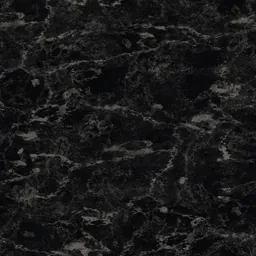 Charcoal MarbleYou set the size
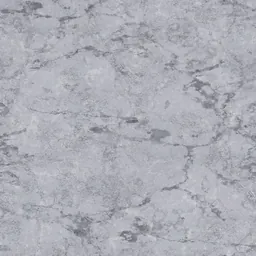 White Veined MarbleYou set the size
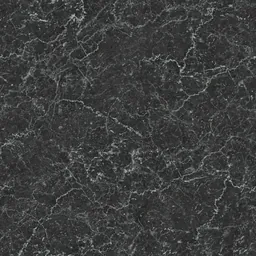 Polished Black MarbleYou set the size
 Bright White MarbleYou set the size
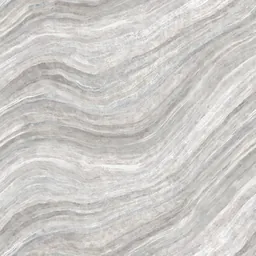 White OnyxYou set the size
 Soft Beige MarbleYou set the size
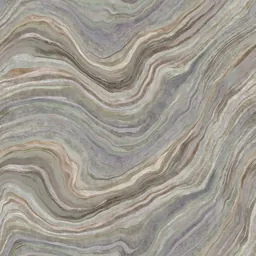 Natural OnyxYou set the size
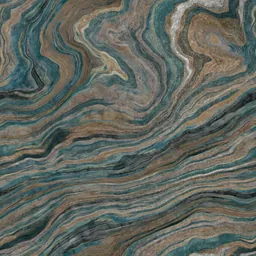 Smooth OnyxYou set the size
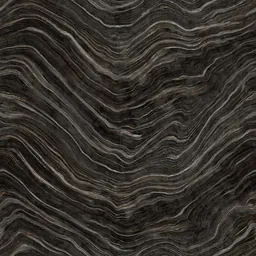 Dark OnyxYou set the size
Click a material: it opens in the editor, where you change the module, joint and pattern and download the maps.
Vein direction is a design decision
Keep the veins running one way across every slab, or let each slab turn at random. Random rotation hides repetition on a large wall; it also changes how the stone reads, so decide it before the render, not after.
Polished is a roughness, not a picture
A photograph of polished marble carries reflections that belong to its room, not to the stone. Keep the colour map clean and let the roughness map make the surface glossy, so it reflects your scene instead.
Questions
What size is one marble slab in these textures?
The collection’s marble pictures publish no slab size, so the editor starts them at 1 m and says the scale is assumed. Set your slab, for example 600 × 1200 mm, before you download.
Are these textures free?
The photographed and scanned surfaces come from ambientCG and Poly Haven under CC0. Editing and previewing are free; the free plan downloads the maps at 1K, Plus at 2K and Pro at 4K. A download or a saved package uses one of the day’s creations.
Can I use the same material in Revit and SketchUp?
“Create and save” keeps the material in your library with a Revit fill pattern (.PAT, model or drafting) drawn from the same module and joint, and the SketchUp, Revit, 3ds Max and Blender plug-ins apply it at its real size.
Related practical guides
Last updated: