PLUG-INS / RHINO
Materialhaus for Rhino
Rhino 9WindowsPreviewv0.2.1Tested in Rhino 9 on Windows, including the editor inside Rhino; the Rhino 7 and 8 builds come in the package.
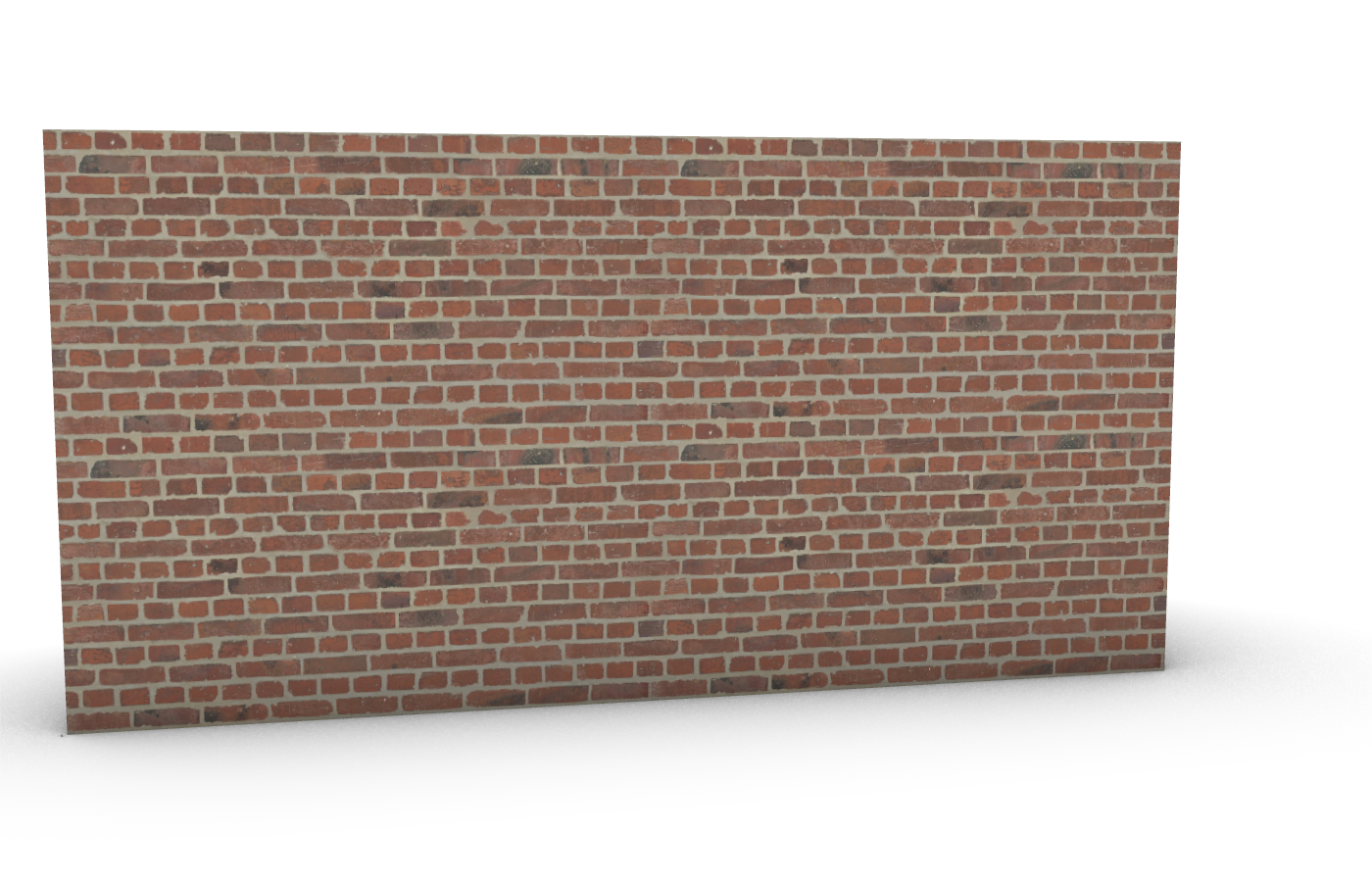
Your Materialhaus materials in a panel in Rhino. Select objects, click Apply to selection, and the material goes on as a Physically Based material at its real size, in world coordinates — no UV mapping — with its hatch pattern at the same module.
FROM INSIDE THE PROGRAM
The size holds inside the software too.
WHAT IT DOES
- 01
Sign in once with your browser — Google or email, whichever you use on Materialhaus. Rhino is not held while you do.
- 02
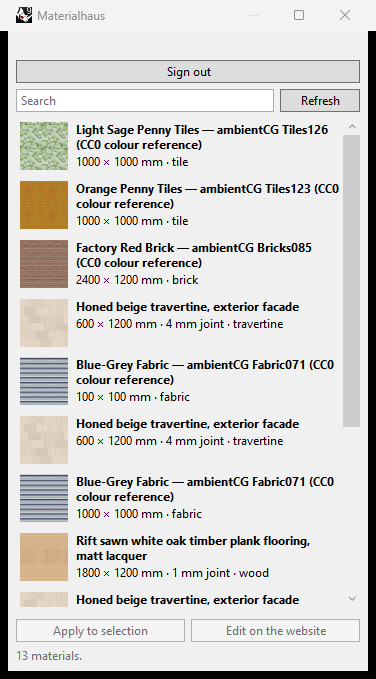
Your Materialhaus materials in a panel, with their pictures and real sizes. In Rhino 9 it opens as its own window; in Rhino 7 and 8 as a docked panel.
- 03
Select surfaces, polysurfaces, extrusions, meshes or SubD and click Apply to selection: a Physically Based material goes on at the material’s real size.
- 04
The maps are placed in world coordinates at the stated size, so there is no UV mapping to set up, in mm, cm, m, inch or foot models.
- 05
Apply the same material again and the one in the model is reused — no “Brick 2”.
- 06
The material’s hatch pattern is added to Rhino’s hatch patterns at the module size.
- 07
Edit on the website opens the material in the Materialhaus editor in your browser; save there and click Refresh in the panel.
- Becomes
- A Physically Based render material in world-coordinate box mapping, and a hatch pattern at the module size
- Editor
- Inside Rhino: Edit opens the editor in a window, and saving updates the material on every object that uses it (one Undo takes it back)
- Run in
- Rhino 9 · Windows
INSTALL
In four steps.
- Download the .yak file for your Rhino: Rhino 8 and 9, or Rhino 7 (SR8 or later).
- Drag it onto the Rhino window. Where dragging does not install it, open the Package Manager (_PackageManager) and install it from the file.
- Type MaterialhausPanel at the command line to open the panel.
- Sign in once. Your browser opens; use Google or email, whichever you use on Materialhaus.
TROUBLESHOOTING
If you get stuck
Which Rhino versions does it run in?
It has been tested in Rhino 9 on Windows, with the Rhino 8 and 9 package. The Rhino 8 build in that package and the Rhino 7 package (SR8 or later) are made for those releases but have not been tried in them yet. There is no macOS version.
Where is the panel?
Type MaterialhausPanel at Rhino’s command line. In Rhino 9 the panel opens in its own window; in Rhino 7 and 8 it is a docked panel.
A material says “No stated size” and will not apply.
A material is never placed at a guessed size. Give it a size with Edit on the website, save it there, and click Refresh in the panel.
Where is the hatch pattern?
In the document’s hatch patterns, named after the material with “(Materialhaus)”, at the module size in the model’s units, so a hatch at scale 1 measures the real module. A model with no unit or custom units gets no hatch pattern.
The textures are missing when I send the .3dm.
The maps are kept on your computer, and the file points at them. Use Save As with “Save textures” so they travel inside the file.
GOOD TO KNOW
In use
- This is a preview. It has been tested in Rhino 9 on Windows; the Rhino 7 and 8 builds are included but have not been tried in those releases yet. There is no macOS version.
- The plug-in is not listed in Rhino’s online Package Manager or on Food4Rhino: install it from the .yak file on this page.
- A material with no stated size is never placed at a guessed one: the panel lists it as “No stated size” and Apply refuses it until it is given a size on the website.
- Commands: MaterialhausPanel, MaterialhausSignIn, MaterialhausSignOut and MaterialhausApply.
- The plug-in talks only to materialhaus.com. Nothing about your model leaves your computer; the server notes which plug-in your account uses, never what is in the model.
The same material, at the same size, in the other programs too.
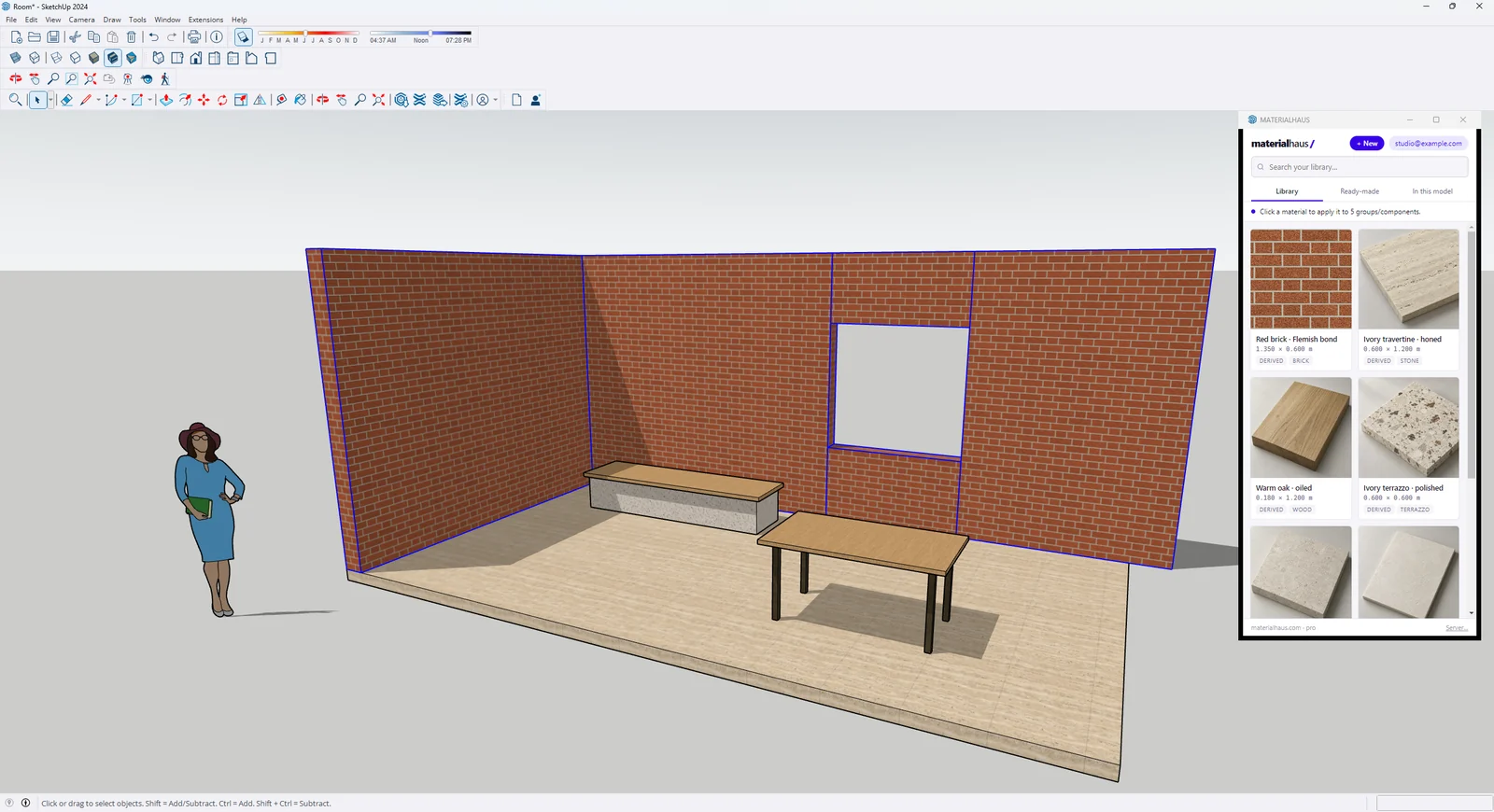 Beta · SketchUp 2024–2025MATERIALHAUS for SketchUpApply in one undo step; a texture someone rescaled by hand is caught and put back at its real size.SketchUp extension →
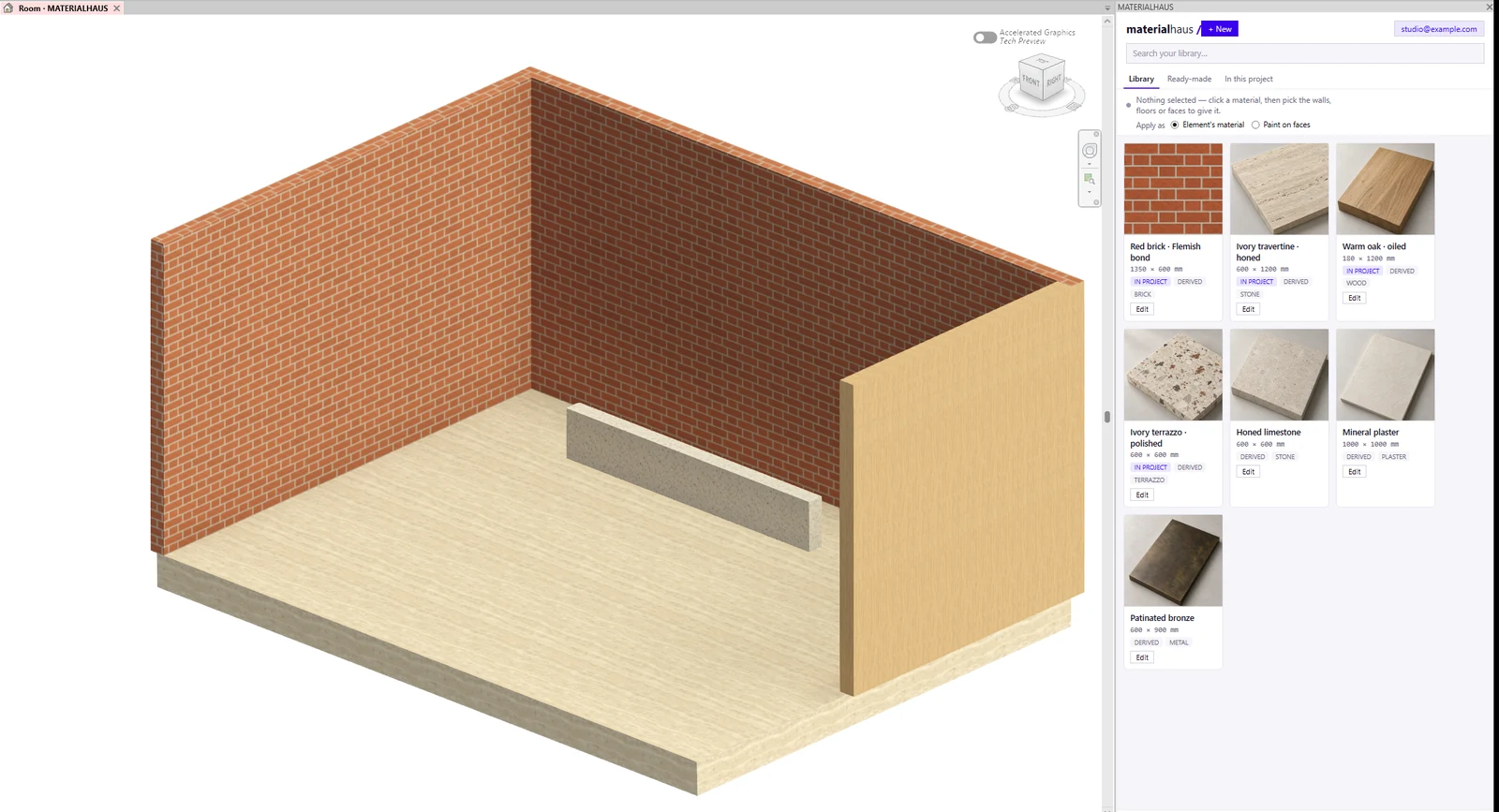 Beta · Revit 2024–2026MATERIALHAUS for RevitTexture and fill pattern from one module; only the elements you selected change.Revit add-in →
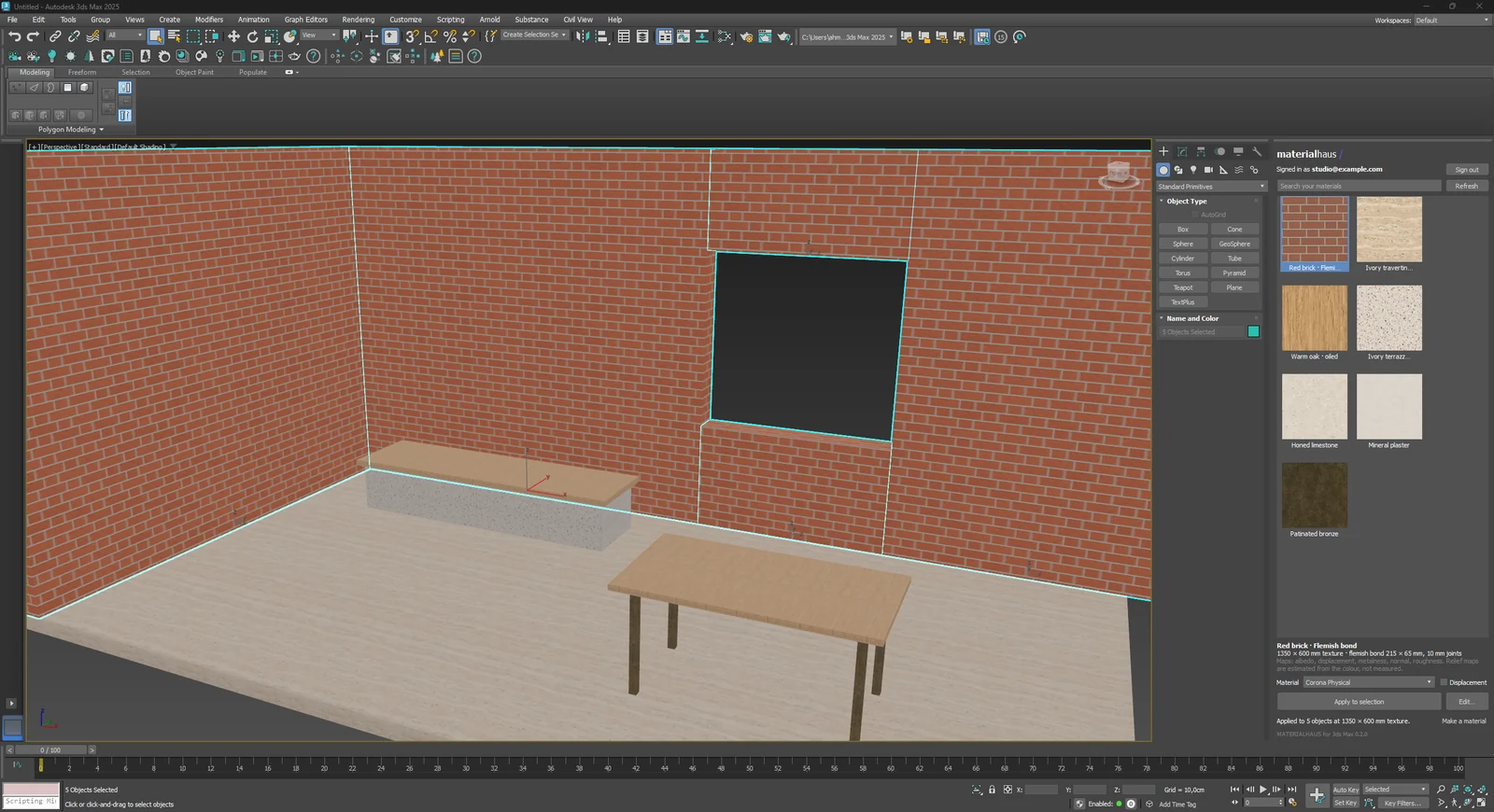 Beta · 3ds Max 2024–2025MATERIALHAUS for 3ds MaxA Corona or Physical material with every map connected, and a real-world UVW Map on each object.3ds Max plug-in →
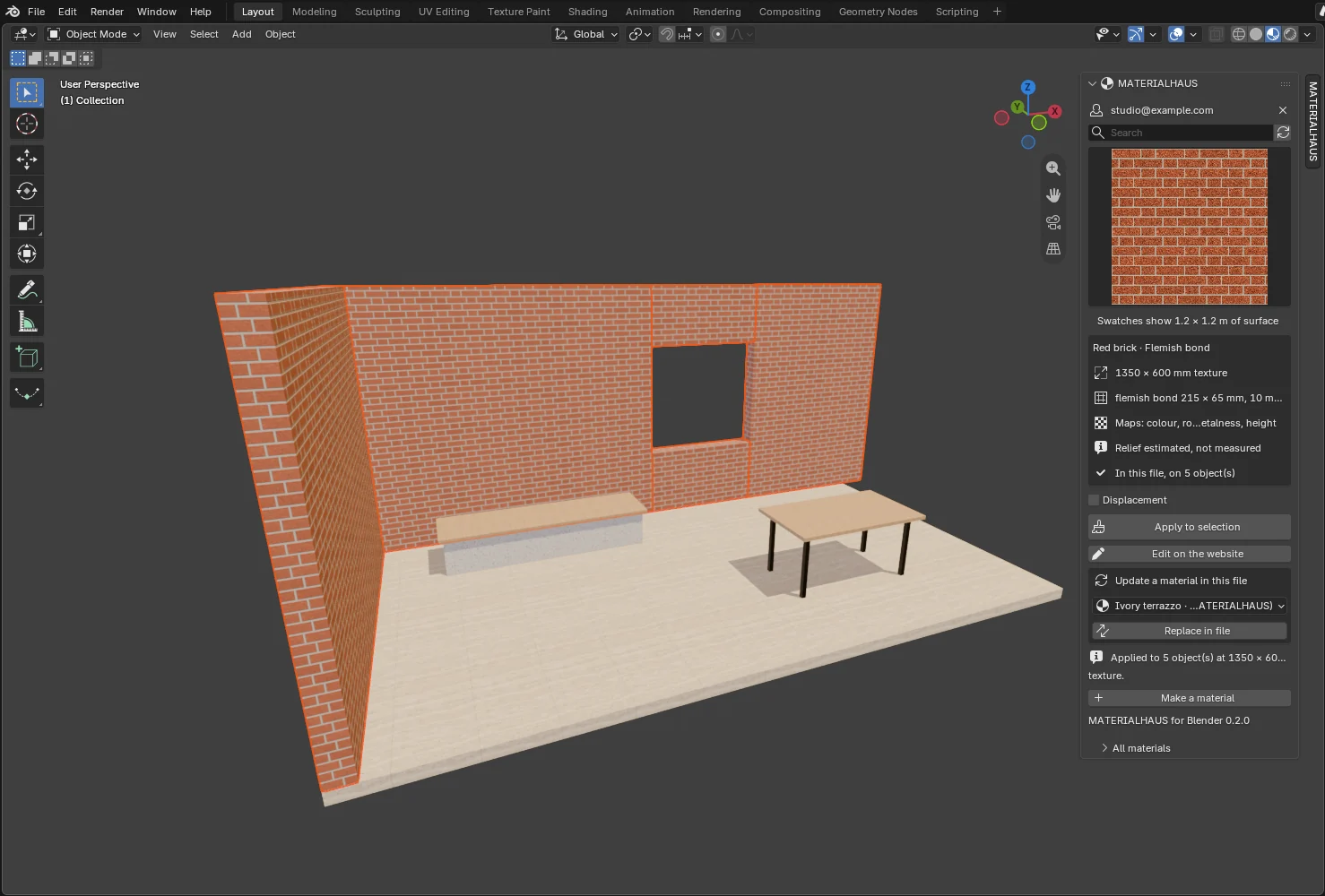 Beta · Blender 5.2MATERIALHAUS for BlenderA real-world node group: the texture keeps its size on walls and floors alike, never mirrored.Blender add-on →
SketchUp is a trademark of Trimble Inc. Autodesk, Revit and 3ds Max are trademarks of Autodesk, Inc. Corona is a trademark of Chaos. Blender is a trademark of the Blender Foundation. Rhinoceros and Rhino are trademarks of Robert McNeel & Associates. MATERIALHAUS is not affiliated with or endorsed by any of these organisations.